Installing the ODBC Driver on Mac
Before installing the driver, you can install the iODBC Driver Manager that you have downloaded it as mentioned in Downloading the ODBC Driver on Mac.
Installing the iODBC Driver Manager
If you want to use the UI to configure the ODBC driver, use the iODBC Driver Manager, which you can download from iODBC Downloads. After downloading the iODBC, install it by:
- Double-clicking the downloaded iODBC Driver Manager (.dmg) file.
- Double-clicking the installer file,
iODBC-SDK.pkgand following the instructions in the prompts.
Installing the ODBC Driver
Perform these steps to install the ODBC driver on Mac:
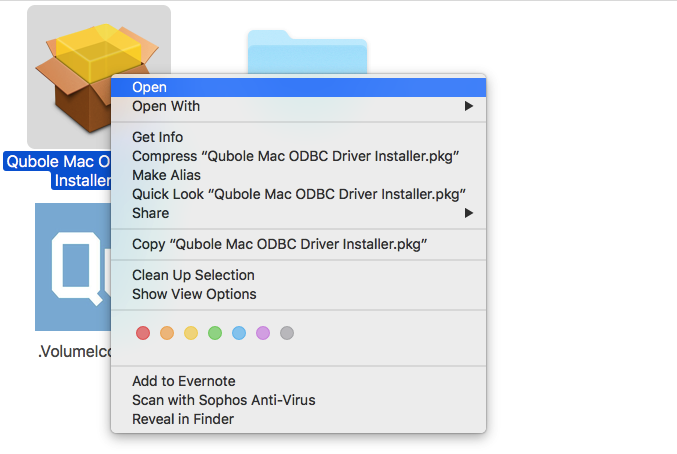
Control-click the QuboleMacODBCInstaller.dmg in your Downloads folder (or wherever you have chosen to download it) and choose Open in the resulting dialog box.
Note
You need to control-click the package, and click Open to affirm that you really do want to open it, because Qubole is not currently an identified developer for the Mac. Qubole expects to rectify this shortly.
In the folder that opens, click the icon labelled Qubole Mac ODBC Driver Installer.pkg.
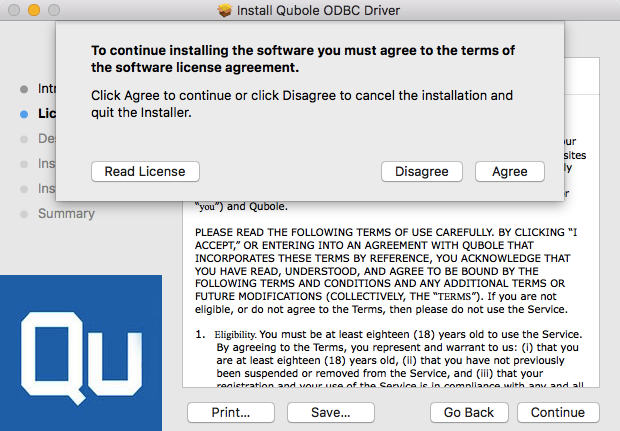
Click Agree to accept the software license agreement and the dialog is illustrated here.
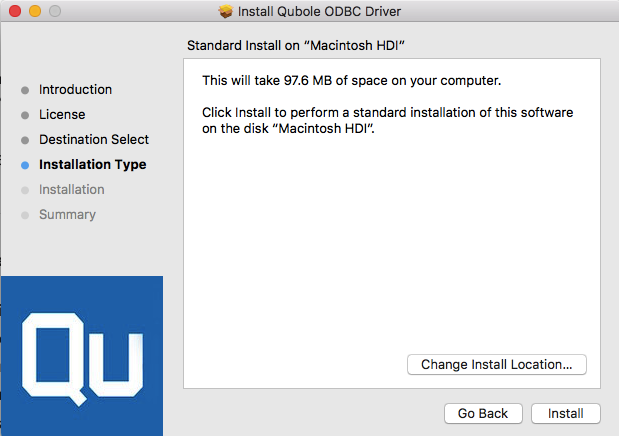
Click Continue and on the resulting screen, click Install and the dialog is illustrated here.
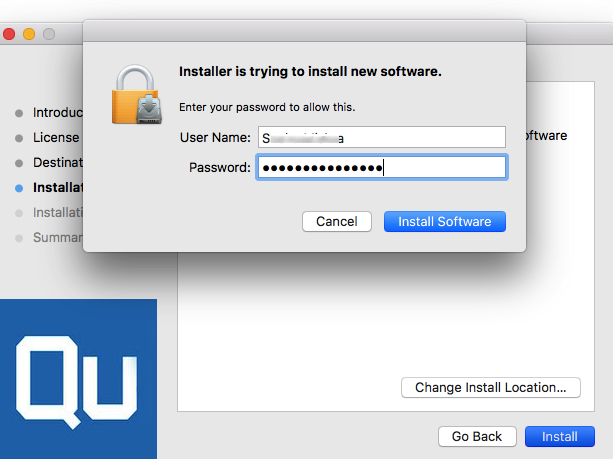
To launch the installation, provide an Administrator password for your Mac and the dialog is illustrated here.
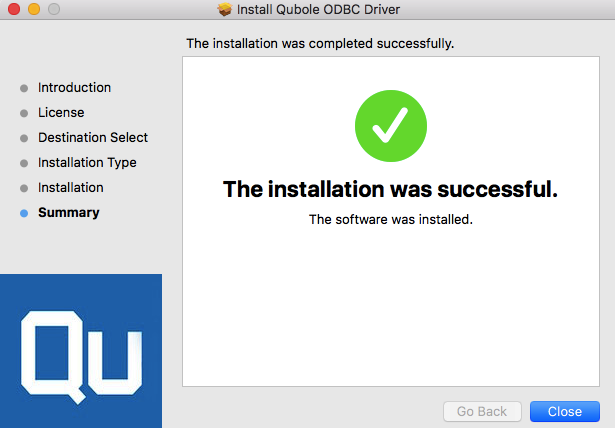
You should see a confirmation that the software was installed successfully as illustrated here.
Note
In JDBC and ODBC driver configurations, https://api.qubole.com is the default endpoint.
Testing the Installation
To run a simple test:
Run the command:
'/Library/Application Support/iODBC/bin/iodbctest'(Make sure you include the single quotes, or the space between
ApplicationandSupportwill cause the command to fail.)In the command-line utility, enter
?to see a list of available data sources.At the prompt, enter
dsn=Qubole ODBC Driver DSNAt the
SQL>prompt, enter theSHOW TABLEScommand.
To test the driver with Microsoft Excel:
- Open a new Excel Worksheet.
- In Data tab, choose Select New Database Query from Database option.
- Go to the System DSN tab and choose the appropriate driver, then click OK.
- Leave the username and password blank if prompted, and click OK.